> ## Documentation Index
> Fetch the complete documentation index at: https://ampersand-24eb5c1a-goto-deep.mintlify.site/llms.txt
> Use this file to discover all available pages before exploring further.
# GoTo
## What's supported
### Supported modules
The GoTo connector supports the following module:
| Module | Description | Example |
| ------------------ | ------------------------------------------------------------------------------------------------------------- | --------------------------------------------------------------------- |
| `goTo` *(default)* | Connects to GoTo products including Admin, Meetings, Webinars, Training, Corporate, Remote Support, and SCIM. | [sample](https://github.com/amp-labs/samples/blob/main/goto/amp.yaml) |
Since `goTo` is the default module, you don't need to set the `module` field in your manifest — it's applied automatically.
### Supported actions
This connector supports:
* [Read Actions](/read-actions), including full historic backfill and incremental read for `historicalMeetings`, `webinars`, and `sessions`. For all other objects, a full read of the GoTo instance will be done per scheduled read.
* [Write Actions](/write-actions).
* [Proxy Actions](/proxy-actions), using the base URL `https://api.getgo.com`.
### Supported objects
The GoTo connector supports reading from the following objects:
* [admin/groups](https://developer.goto.com/admin#tag/Groups/operation/Get%20Groups)
* [admin/users](https://developer.goto.com/admin#tag/Users/operation/Get%20Users)
* [attributes](https://developer.goto.com/admin#tag/Attributes/operation/Get%20All%20Attributes)
* [groups](https://developer.goto.com/Scim#tag/Groups/operation/getGroups)
* [historicalMeetings](https://developer.goto.com/GoToMeetingV1/#tag/Meetings/operation/getHistoricalMeetings)
* [licenses](https://developer.goto.com/admin#tag/Licenses/operation/Get%20Licenses)
* [portals](https://developer.goto.com/g2a-c#tag/Portals/paths/~1portals~1pages/get)
* [representatives](https://developer.goto.com/g2a-c#tag/Representatives/paths/~1representatives~1pages/get)
* [rolesets](https://developer.goto.com/admin#tag/Role-Sets/operation/Get%20Role%20Sets)
* [sessions](https://developer.goto.com/g2a-rs#tag/Sessions/paths/~1G2A~1rest~1v1~1sessions/get)
* [teams](https://developer.goto.com/g2a-c#tag/Teams/paths/~1teams~1pages/get)
* [upcomingMeetings](https://developer.goto.com/GoToMeetingV1/#tag/Meetings/operation/getUpcomingMeetings)
* [userSubscriptions](https://developer.goto.com/GoToWebinarV2/#tag/Webhooks/operation/getUserSubscriptions)
* [users](https://developer.goto.com/Scim#tag/Users/operation/getUsers)
* [webhooks](https://developer.goto.com/GoToWebinarV2/#tag/Webhooks/operation/getWebhooks)
* [webinars](https://developer.goto.com/GoToWebinarV2/#tag/Webinars/operation/getAllAccountWebinars)
The GoTo connector supports writing to the following objects:
* [admin/groups](https://developer.goto.com/admin#tag/Groups/operation/Add%20Group)
* [admin/users](https://developer.goto.com/admin#tag/Users/operation/Add%20Users)
* [groups](https://developer.goto.com/Scim#tag/Groups/operation/createGroup)
* [meetings](https://developer.goto.com/GoToMeetingV1/#tag/Meetings)
* [representatives](https://developer.goto.com/g2a-c#tag/Representatives/paths/~1representatives/post)
* [rolesets](https://developer.goto.com/admin#tag/Role-Sets/operation/Add%20Role%20Set)
* [teams](https://developer.goto.com/g2a-c#tag/Teams/paths/~1teams/post)
* [tickets](https://developer.goto.com/LogMeInResolve/#tag/Ticketing)
* [users](https://developer.goto.com/Scim#tag/Users/operation/createUsers)
* [userSubscriptions](https://developer.goto.com/GoToWebinarV2#tag/Webhooks/operation/createUserSubscriptions)
* [webhooks](https://developer.goto.com/GoToWebinarV2#tag/Webhooks/operation/createWebhooks)
### Example integration
For an example manifest file of a GoTo integration, visit our [samples repo on GitHub](https://github.com/amp-labs/samples/blob/main/goto/amp.yaml).
## Before you get started
goto
To integrate GoTo with Ampersand, you need to [Create a GoTo Account](https://developer.goto.com/signup/) and obtain the following credentials from your GoTo App:
* Client ID
* Client Secret
You will then use these credentials to connect your application to Ampersand.
### Create a GoTo account
Here's how you can sign up for a GoTo account:
1. Go to the [GoTo sign-up page](https://developer.goto.com/signup/).
2. Fill in the necessary details and register your account.
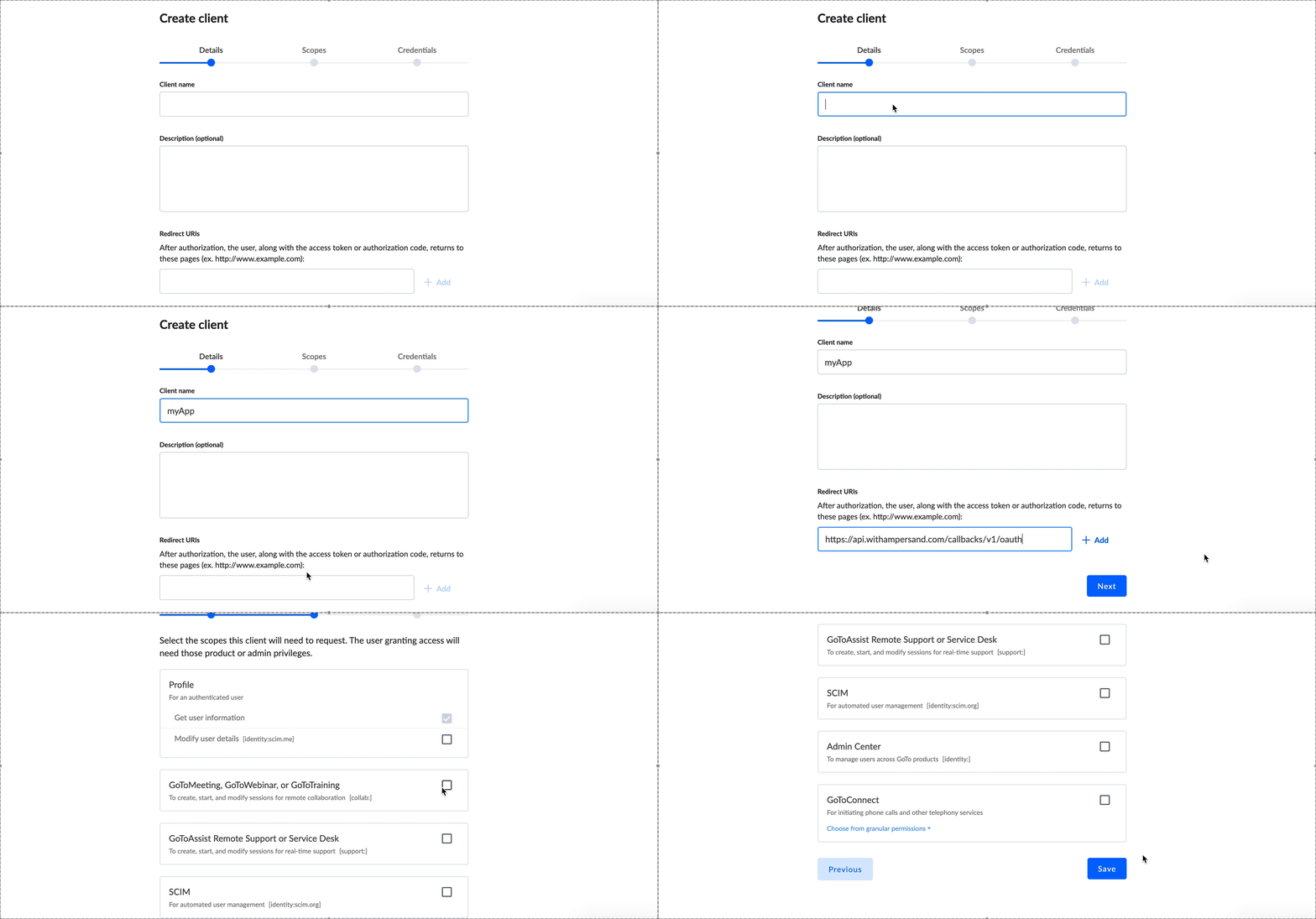
### Creating a GoTo OAuth app
Once your GoTo account is ready, create an OAuth application for Ampersand:
1. Log in to your [GoTo account](https://identity.goto.com/login).
2. Go to [GoTo developer clients](https://developer.logmeininc.com/clients).
3. Click **Create a new client**.
4. Open the **OAuth Apps** tab.
5. Click **Create App**.
6. Fill in the app details:
1. **App Name**: Choose a name for the OAuth app.
2. **App Description**: Add a short description.
3. **Redirect URL**: Enter the Ampersand redirect URL: `https://api.withampersand.com/callbacks/v1/oauth`.
7. Click **Next**.
8. Select the permissions your app needs.
9. Click **Save**.
You'll find the **Client ID** and **Client Secret** keys in your OAuth app details. These credentials are required for connecting your app to Ampersand, so be sure to note them carefully.
 ### Add your GoTo app info to Ampersand
1. Log in to your [Ampersand Dashboard](https://dashboard.withampersand.com).
2. Select the project where you want to add the GoTo app.
### Add your GoTo app info to Ampersand
1. Log in to your [Ampersand Dashboard](https://dashboard.withampersand.com).
2. Select the project where you want to add the GoTo app.
 3. Navigate to the **Provider Apps** section.
4. Select **GoTo** from the provider list.
5. Enter the **Client ID** and **Client Secret** from your GoTo OAuth app.
3. Navigate to the **Provider Apps** section.
4. Select **GoTo** from the provider list.
5. Enter the **Client ID** and **Client Secret** from your GoTo OAuth app.
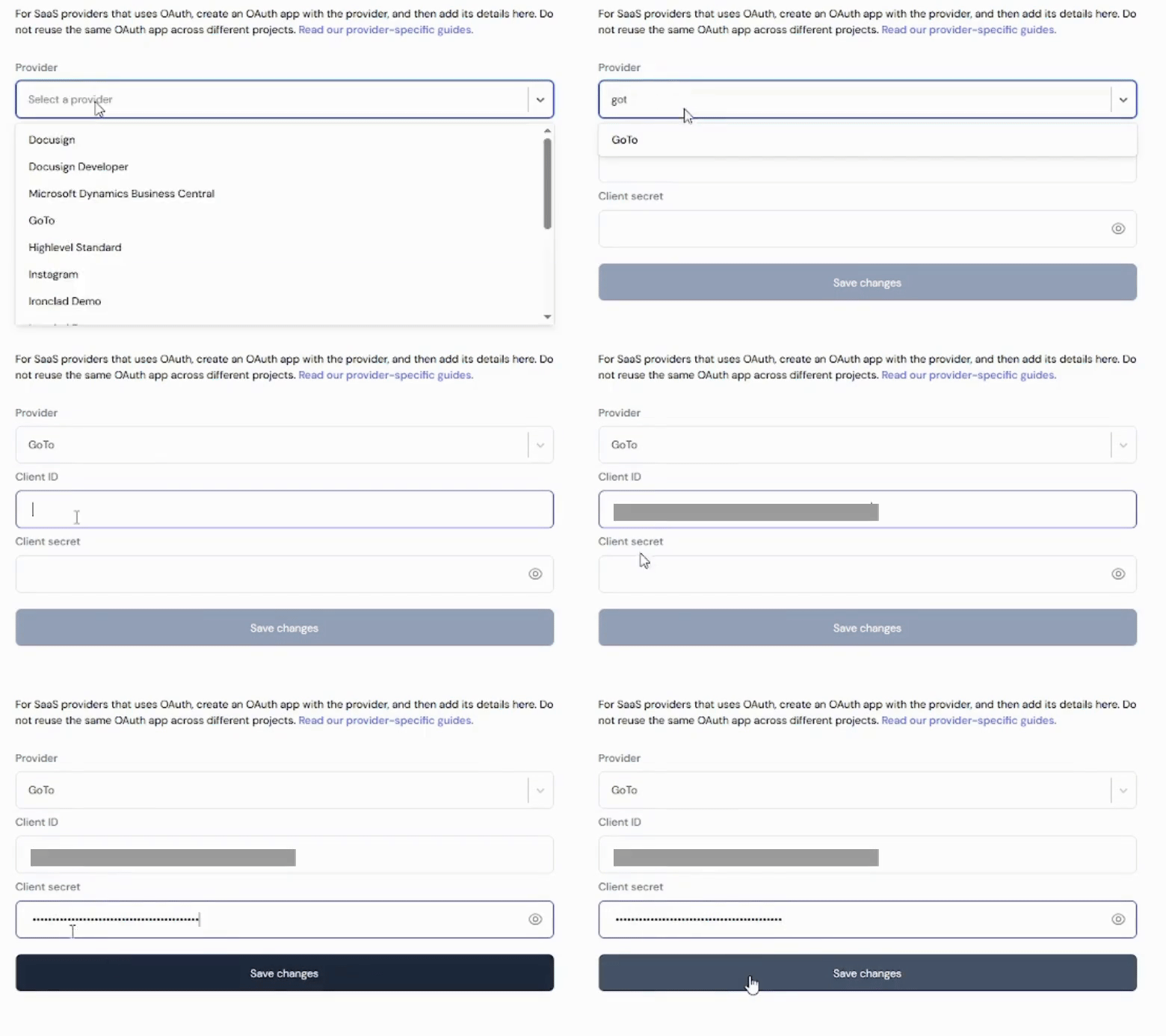 6. Click **Save Changes**.
## Using the connector
To start integrating with GoTo:
* Create a manifest file like the [example above](#example-integration).
* Deploy it using the [amp CLI](/cli/overview).
* If you are using Read Actions, create a [destination](/destinations).
* Embed the [InstallIntegration](/embeddable-ui-components#install-integration) UI component. The UI component prompts the customer for GoTo OAuth authorization.
* Start using the connector.
* If your integration has [Read Actions](/read-actions), Ampersand delivers webhook messages.
* If your integration has [Write Actions](/write-actions), call the Write API.
* If your integration has [Proxy Actions](/proxy-actions), call Proxy API requests against `https://api.getgo.com`.
6. Click **Save Changes**.
## Using the connector
To start integrating with GoTo:
* Create a manifest file like the [example above](#example-integration).
* Deploy it using the [amp CLI](/cli/overview).
* If you are using Read Actions, create a [destination](/destinations).
* Embed the [InstallIntegration](/embeddable-ui-components#install-integration) UI component. The UI component prompts the customer for GoTo OAuth authorization.
* Start using the connector.
* If your integration has [Read Actions](/read-actions), Ampersand delivers webhook messages.
* If your integration has [Write Actions](/write-actions), call the Write API.
* If your integration has [Proxy Actions](/proxy-actions), call Proxy API requests against `https://api.getgo.com`.