

What’s supported
Supported modules
The GoTo connector supports the following module:
Since
goTo is the default module, you don’t need to set the module field in your manifest — it’s applied automatically.
Supported actions
This connector supports:- Read Actions, including full historic backfill and incremental read for
historicalMeetings,webinars, andsessions. For all other objects, a full read of the GoTo instance will be done per scheduled read. - Write Actions.
- Proxy Actions, using the base URL
https://api.getgo.com.
Supported objects
The GoTo connector supports reading from the following objects:- admin/groups
- admin/users
- attributes
- groups
- historicalMeetings
- licenses
- portals
- representatives
- rolesets
- sessions
- teams
- upcomingMeetings
- userSubscriptions
- users
- webhooks
- webinars
- admin/groups
- admin/users
- groups
- meetings
- representatives
- rolesets
- teams
- tickets
- users
- userSubscriptions
- webhooks
Example integration
For an example manifest file of a GoTo integration, visit our samples repo on GitHub.Before you get started
goto To integrate GoTo with Ampersand, you need to Create a GoTo Account and obtain the following credentials from your GoTo App:- Client ID
- Client Secret
Create a GoTo account
Here’s how you can sign up for a GoTo account:- Go to the GoTo sign-up page.
- Fill in the necessary details and register your account.
Creating a GoTo OAuth app
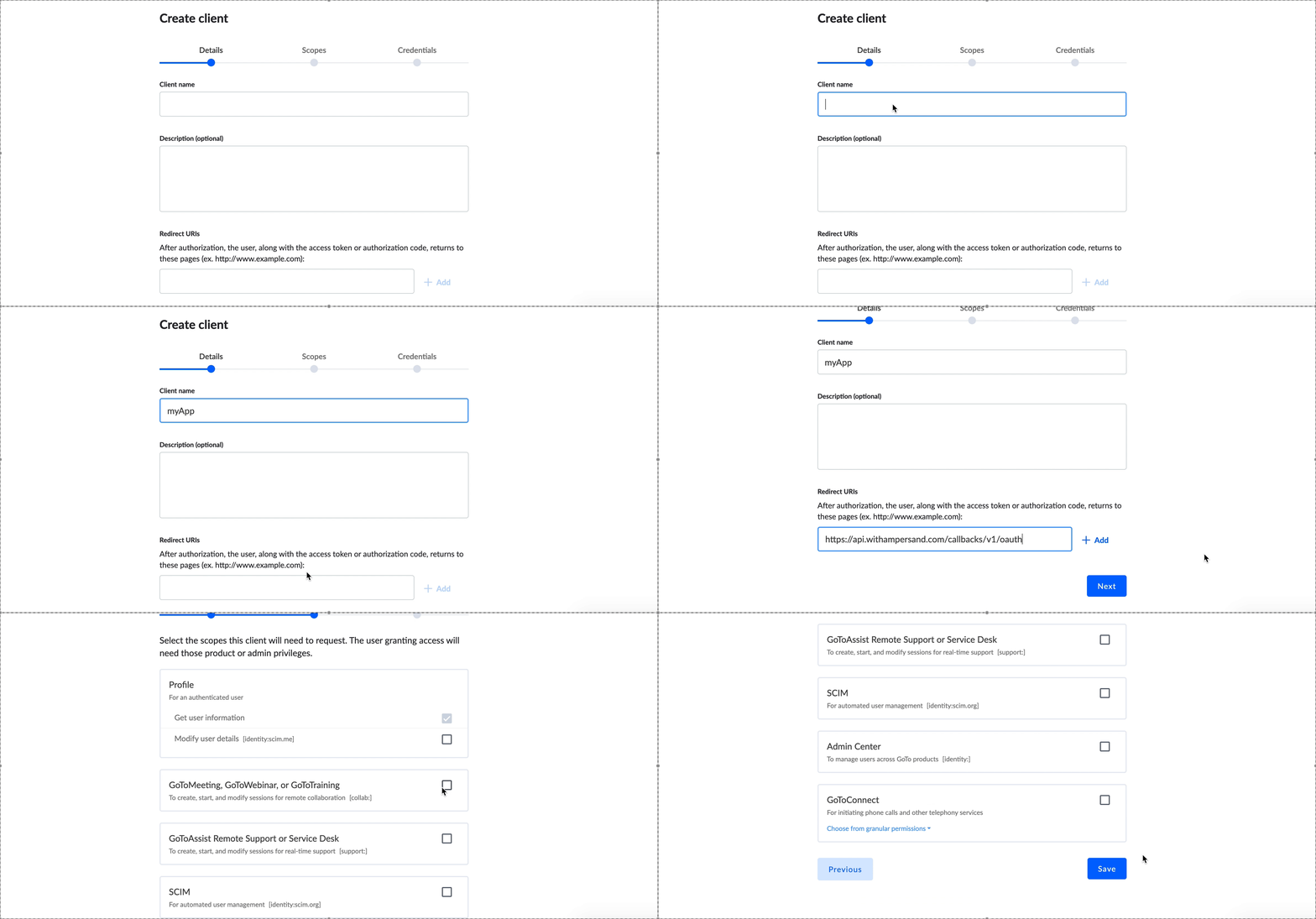
Once your GoTo account is ready, create an OAuth application for Ampersand:- Log in to your GoTo account.
- Go to GoTo developer clients.
- Click Create a new client.
- Open the OAuth Apps tab.
- Click Create App.
- Fill in the app details:
- App Name: Choose a name for the OAuth app.
- App Description: Add a short description.
- Redirect URL: Enter the Ampersand redirect URL:
https://api.withampersand.com/callbacks/v1/oauth.
- Click Next.
- Select the permissions your app needs.
- Click Save.
Add your GoTo app info to Ampersand
- Log in to your Ampersand Dashboard.
-
Select the project where you want to add the GoTo app.

- Navigate to the Provider Apps section.
- Select GoTo from the provider list.
-
Enter the Client ID and Client Secret from your GoTo OAuth app.
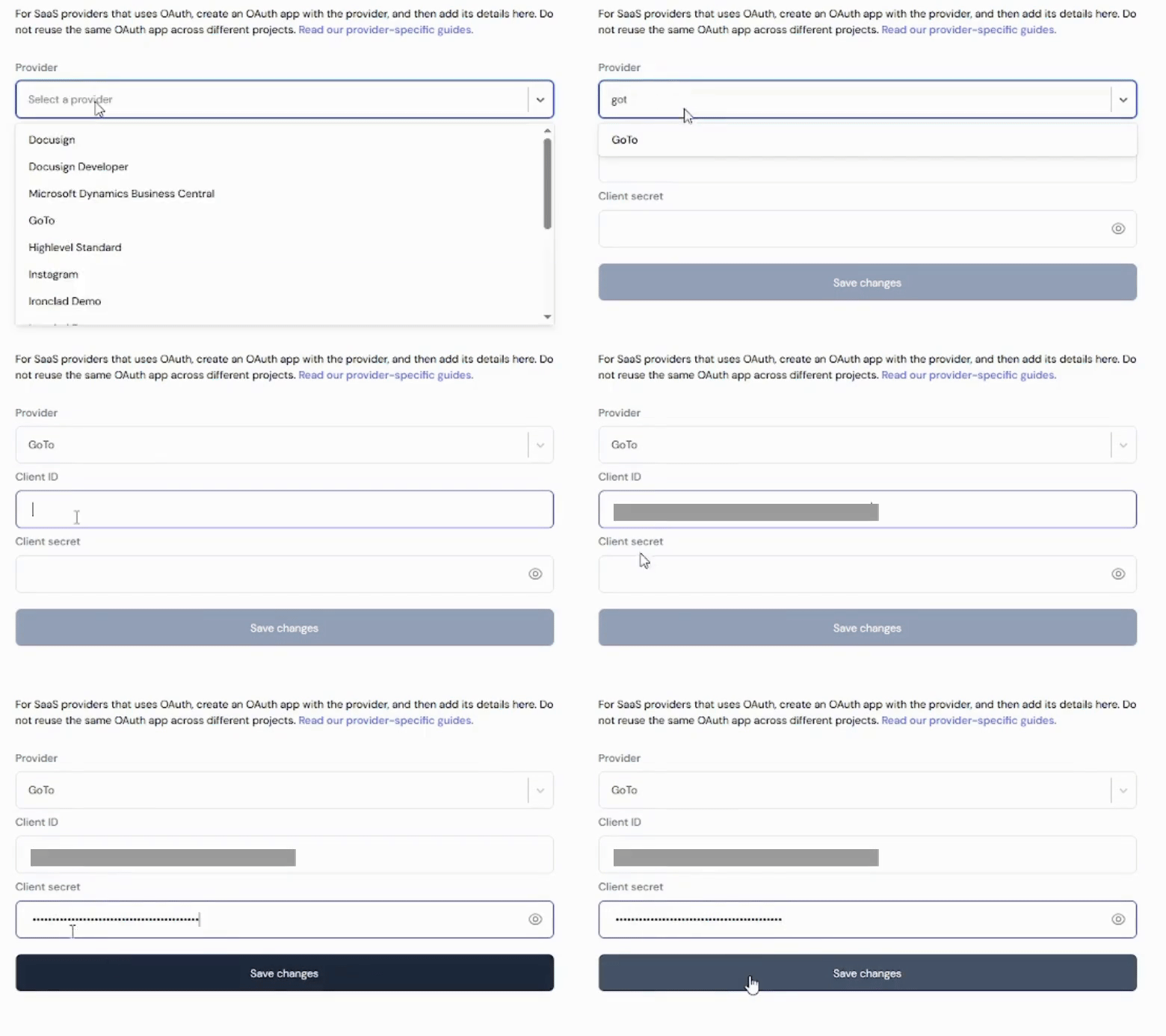
- Click Save Changes.
Using the connector
To start integrating with GoTo:- Create a manifest file like the example above.
- Deploy it using the amp CLI.
- If you are using Read Actions, create a destination.
- Embed the InstallIntegration UI component. The UI component prompts the customer for GoTo OAuth authorization.
- Start using the connector.
- If your integration has Read Actions, Ampersand delivers webhook messages.
- If your integration has Write Actions, call the Write API.
- If your integration has Proxy Actions, call Proxy API requests against
https://api.getgo.com.